ChatCut Models
AI video & image models
Seedance, Kling, GPT Image and more, in one editor. Pick a model, generate the shot, keep editing.
Video models
Generate a clip, then cut it on the same timeline.
-
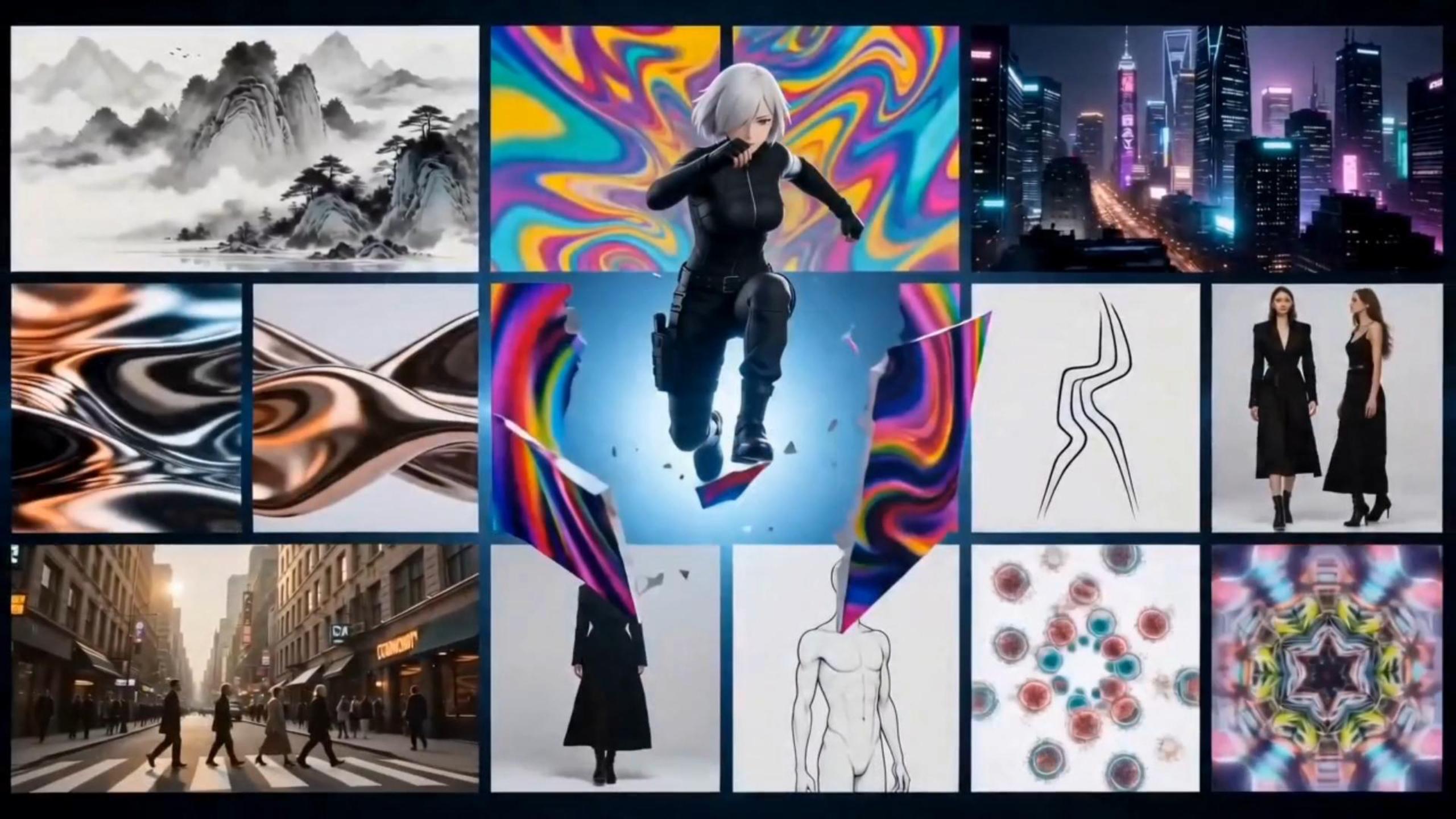
ByteDance
Seedance 2.5
Mix up to 30 image, 10 video and 10 audio references, or edit and extend a clip you already have.
Explore -

Kuaishou
Kling 4.0
The longest single take in ChatCut: up to 30 seconds with native sound, and 21:9 output.
Explore -

ByteDance
Seedance 2.0
Text, first and last frames or mixed references, and the only model in ChatCut with native 4K output.
Explore -
Kuaishou
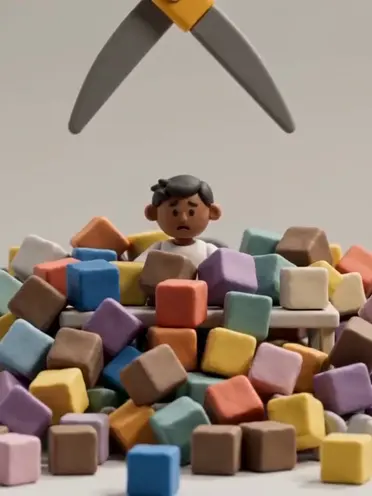
Kling 3.0
Text, first and last frames and reference images in one request, with native audio. Paused for new generations for now.
Explore
Image models
Make stills, posters and first frames for your video.

Which model should I pick?
Start from the shot you need. The Model Capability Matrix has every input limit, length and resolution.
- One long, continuous shot Kling 4.0 Up to 30 seconds in a single take, with sound.
- Change or extend a clip you already have Seedance 2.5 Edit and Extend modes take your source video directly.
- Native 4K output Seedance 2.0 The only native 4K model in ChatCut's selector.
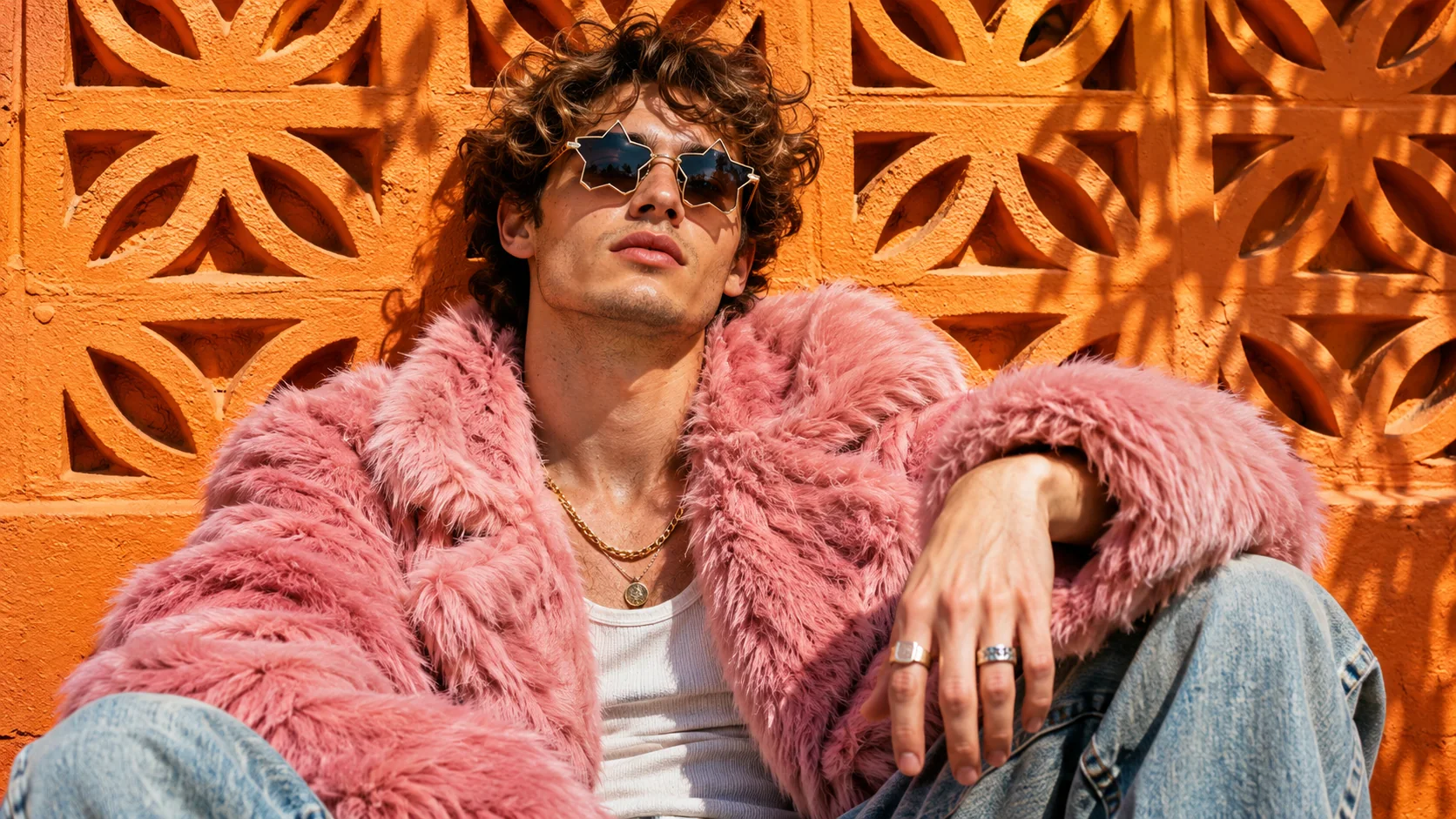
- A still, poster or sticker GPT Image 2.6 Then drag the image into a video model as a first frame.
Questions about AI models in ChatCut
Which AI models can I use in ChatCut?
Video Gen offers Seedance 2.5, Seedance 2.0 (plus its Fast and mini versions), Kling 4.0, Gemini Omni 1.1 Flash, MiniMax H3 and H3 Max. For images, GPT Image 2.6 is the newest; the image generation docs list the other image models in the selector. Kling 3.0 is temporarily paused for new generations, and Seedream 5.5 is coming soon. The Model Capability Matrix in the docs lists the current inputs, lengths and resolutions for each.
Do I need a separate account for each model?
No. Every model runs inside ChatCut with your ChatCut credits, so you pick a model in the AI panel instead of signing up for each provider. Generation uses credits, and most models need a paid plan; the credit estimate appears beside Send before you generate.
How do I choose between them?
Start from the shot you need: length, whether you have a source clip to edit, the resolution you deliver at, and how many takes you expect. The guide above covers the common cases, and each model page shows real examples.
Can I edit what a model generates?
Yes. Every result lands in My Assets and drops onto the same timeline as the rest of your project, so you can trim it, caption it, add music or a voiceover, and export without switching tools.